F11 in Tally Prime — Company Features Shortcut Key
F11 से TallyPrime में Company Features खुलता है — यहीं से current company के लिए Accounting, Inventory, Taxation (GST/TDS/TCS) और online access जैसे features enable या disable होते हैं। अगर कोई option या feature Tally में नहीं दिख रहा, तो अक्सर उसे F11 से Yes करना होता है।
F11 कहाँ से खुलता है
F11 किसी भी screen से सीधे दबा सकते हैं। Menu से जाना हो तो: Gateway of Tally → Company (K) menu → Configure section → Features (F11)।
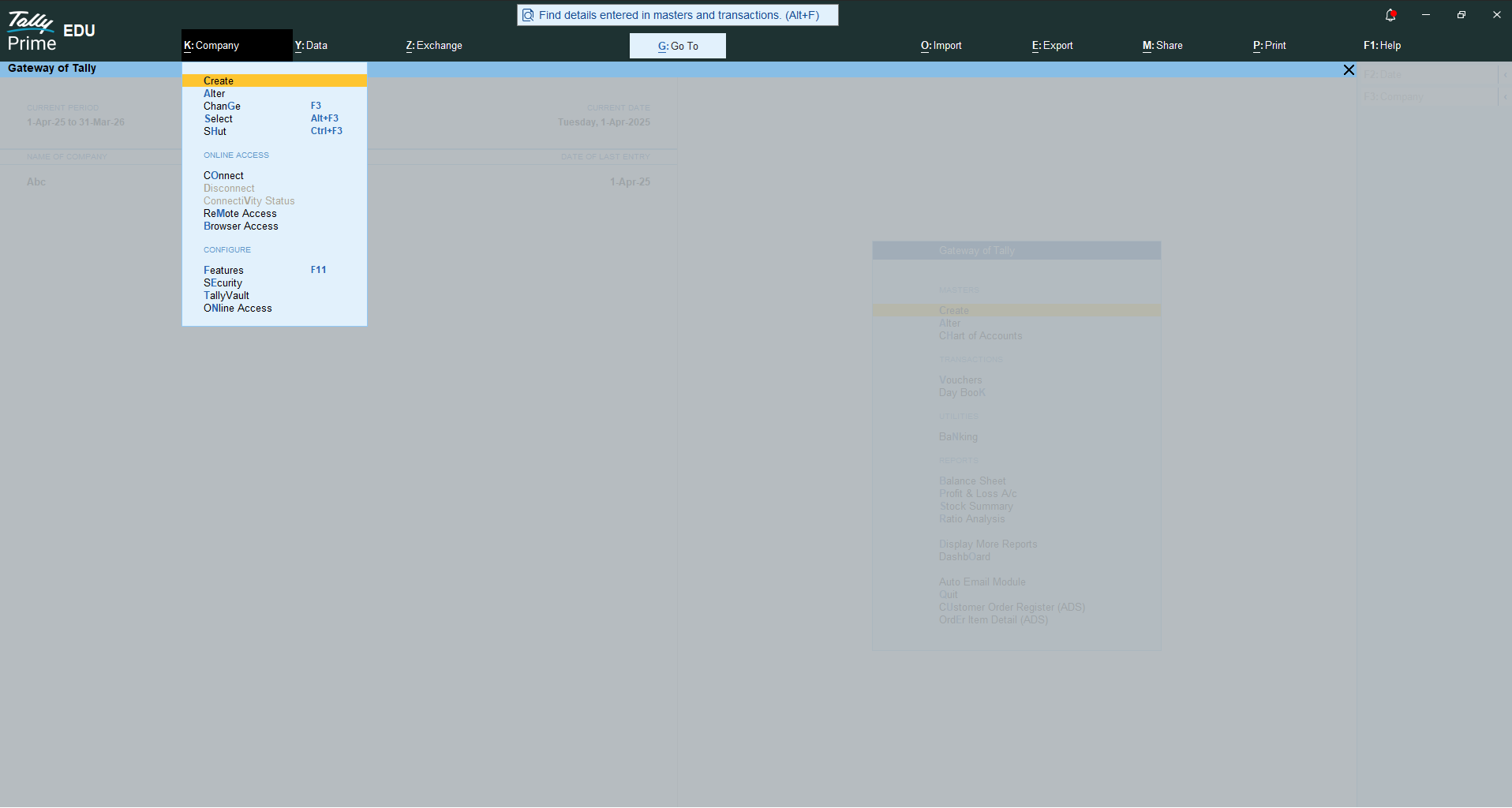
F11 Company Features — पूरी Screen
F11 दबाते ही Company Features Alteration screen खुलती है। ऊपर Show more features और Show all features toggles होते हैं — इन्हें Yes करने पर सारे advanced options दिखते हैं।
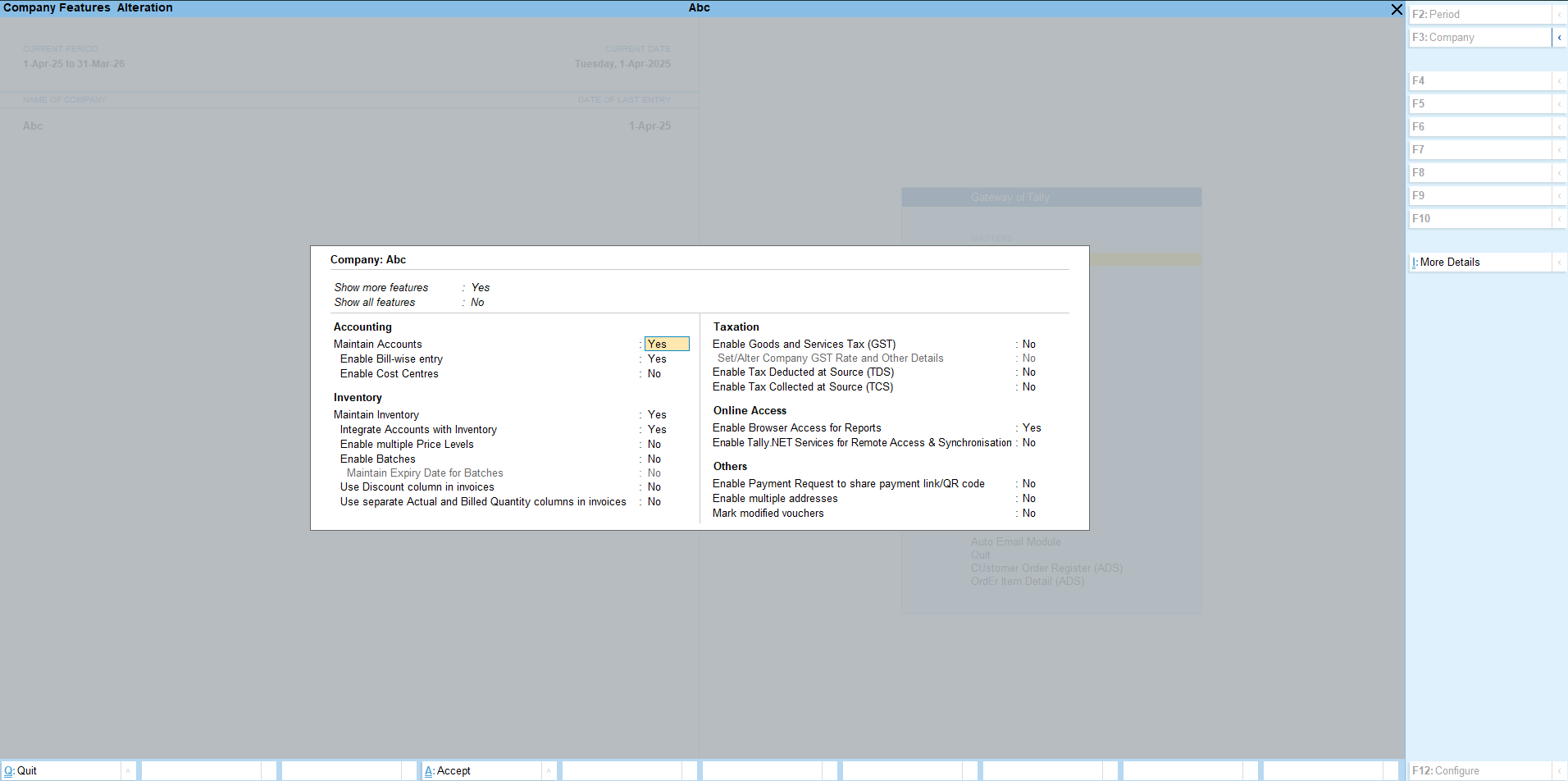
F11 के Main Sections
| Section | Key Options |
|---|---|
| Accounting | Maintain Accounts · Enable Bill-wise entry · Enable Cost Centres |
| Inventory | Maintain Inventory · Integrate Accounts with Inventory · multiple Price Levels · Batches · Discount column in invoices |
| Taxation | Enable GST · Set/Alter GST Details · Enable TDS · Enable TCS |
| Online Access | Enable Browser Access for Reports · Enable Tally.NET Services (Remote Access & Sync) |
| Others | Payment Request (payment link/QR) · multiple addresses · Mark modified vouchers |
GST Enable करने का तरीका (F11 से)
| Step | Action |
|---|---|
| 1 | F11 दबाएं — Company Features खुलेगा |
| 2 | Taxation section में Enable Goods and Services Tax (GST) → Yes |
| 3 | Set/Alter Company GST Rate and Other Details → Yes करके GSTIN, registration type आदि भरें |
| 4 | Ctrl+A से save — अब GST options सभी vouchers और reports में आ जाएंगे |
Common Mistakes
Feature ढूँढते रहना जो enable ही नहीं है
GST, Cost Centres या Batches का option नहीं दिख रहा? पहले F11 से उसे Yes करें — तभी vouchers में आएगा।
“Show all features” off रखना
कई advanced options छिपे रहते हैं। Show more/all features को Yes करें तब पूरी list दिखेगी।
F11 और F12 को एक समझना
F11 = Company Features (GST, Inventory enable करना), F12 = Configure (screen-level settings)। दोनों अलग हैं।
FAQ — F11 Company Features
What does F11 do in Tally Prime?
How do I enable GST using F11?
Why can’t I see all options in F11?
F11 Tally Prime में क्या करता है?
F11 से GST कैसे enable करें?
F11 में सारे options क्यों नहीं दिखते?
Related: All Shortcut Keys — Complete List · GST in Tally Guides · F9 — Purchase Voucher
Tally या digital growth में help चाहिए?
Accurate Digital Services — Tally Accounting Software (sales · support · customization) · Local & SEO Services · WhatsApp Business API · SMS & RCS Messaging. पूरे India में।
WhatsApp पर पूछें या call: +91 93111 67841